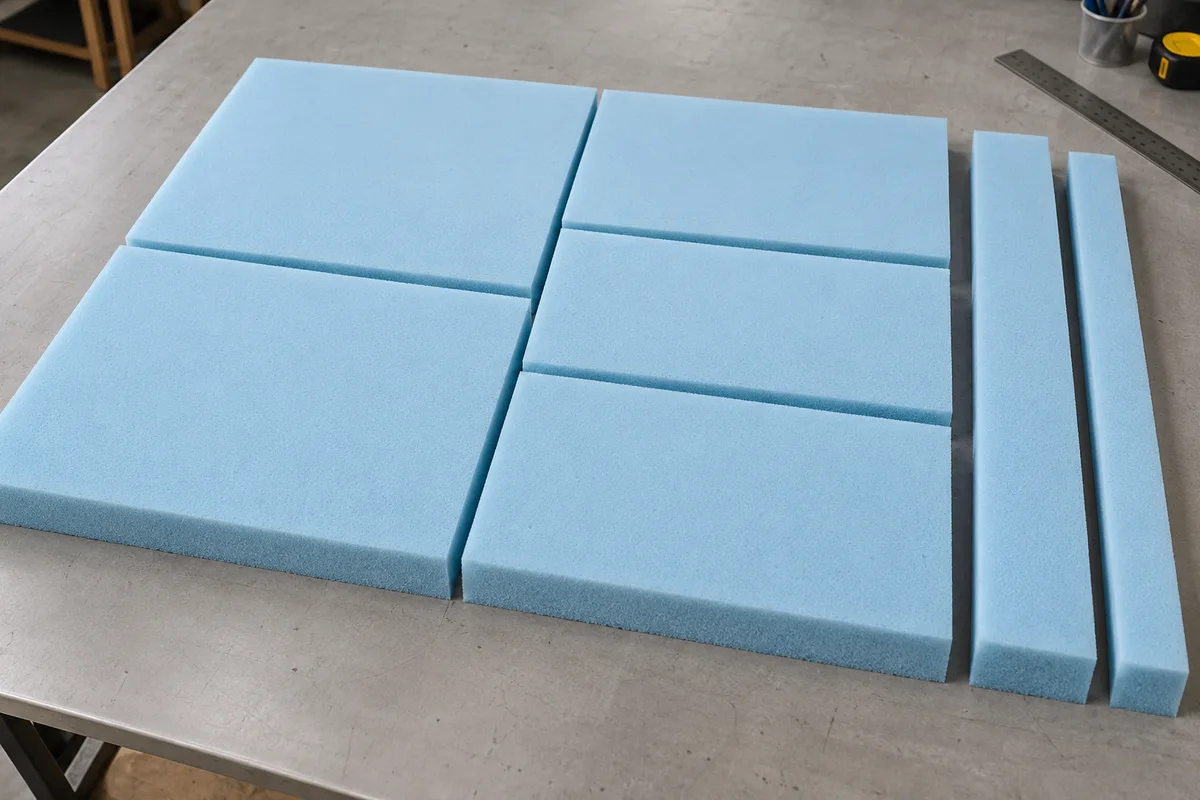
Turn a list of rectangular foam cuts into a visible sheet plan. Keep material and thickness groups separate, compare available sheets and review every unplaced piece before ordering or cutting.
Private, on this device
Fixed rectangular sheets and rectangular cuts only. Up to 8 individual sheets, 40 requirement rows and 100 physical pieces. No contour cuts, thickness slicing, lamination, compression fitting or guaranteed minimum sheet count.
EXAMPLE
Example inputs: replace with your measured project.
Download example JSON · Private file processing in this browser. Export a backup for other devices.
Adjust a piece
Select a placed piece on the map, drag it, or move with arrow keys (1 display unit, Shift for 10). Exact coordinates below also work on touch screens. Locked pieces must be unlocked before dragging.
Review thickness, material and every unplaced piece. The plan reports sheets actually used, not a proven minimum. Free regions include cutting gaps; inspect before reuse.
Independent local project
Saving keeps the current positions and locks on this device.
Build the plan around real sheet inventory
01
Record each usable sheet
Enter a separate row for every full sheet or usable rectangular remnant that may be used. Measure its usable width, length and thickness and give it a unique identifier. Exclude damaged edges before entering the rectangle. Material names distinguish products or grades that must not be mixed. Adding a second identical sheet means creating a second stock row; it is not assumed from unused area elsewhere.
02
Enter actual foam cut dimensions
List the rectangle dimensions, thickness, material and quantity for each requirement. These are foam cutting dimensions, not raw fabric panels with seam allowances. The optional box-cushion import copies cover sewing dimensions only as a starting point. Confirm the fit against foam, batting and the cover construction, then edit the requirement before arranging. The calculator does not make that fitting decision for you.
03
Set the cut separation and rotation
Use a gap that suits the chosen cutting process and the practical allowance you need between adjacent pieces. It is not an extra amount added to every finished rectangle. Allow an in-plane quarter turn only where the foam product permits it. Turning does not change thickness or combine thinner sheets. No outside-edge margin is added beyond the usable dimensions you entered.
04
Run, inspect and compare
Run the layout, read the unplaced list and inspect each sheet map. You can drag pieces, move them with arrow keys or enter exact coordinates. Lock a checked position before rerunning. If more material is needed, add an appropriate sheet and calculate again. Save the project with positions and locks, export JSON for backup and print the checked coordinate record for the workbench.
Treat thickness as part of the material requirement
Read the whole sheet, not only occupied depth
Unlike a fabric roll, a foam sheet is purchased or allocated as a fixed rectangle. Its utilization percentage uses the entire entered sheet area, even if only one corner is occupied. The report counts sheets with at least one placed piece and shows the total supplied for comparison. A full-width remainder and smaller free regions may both be useful, but they need a real inspection before reuse.
Separate grades and thicknesses
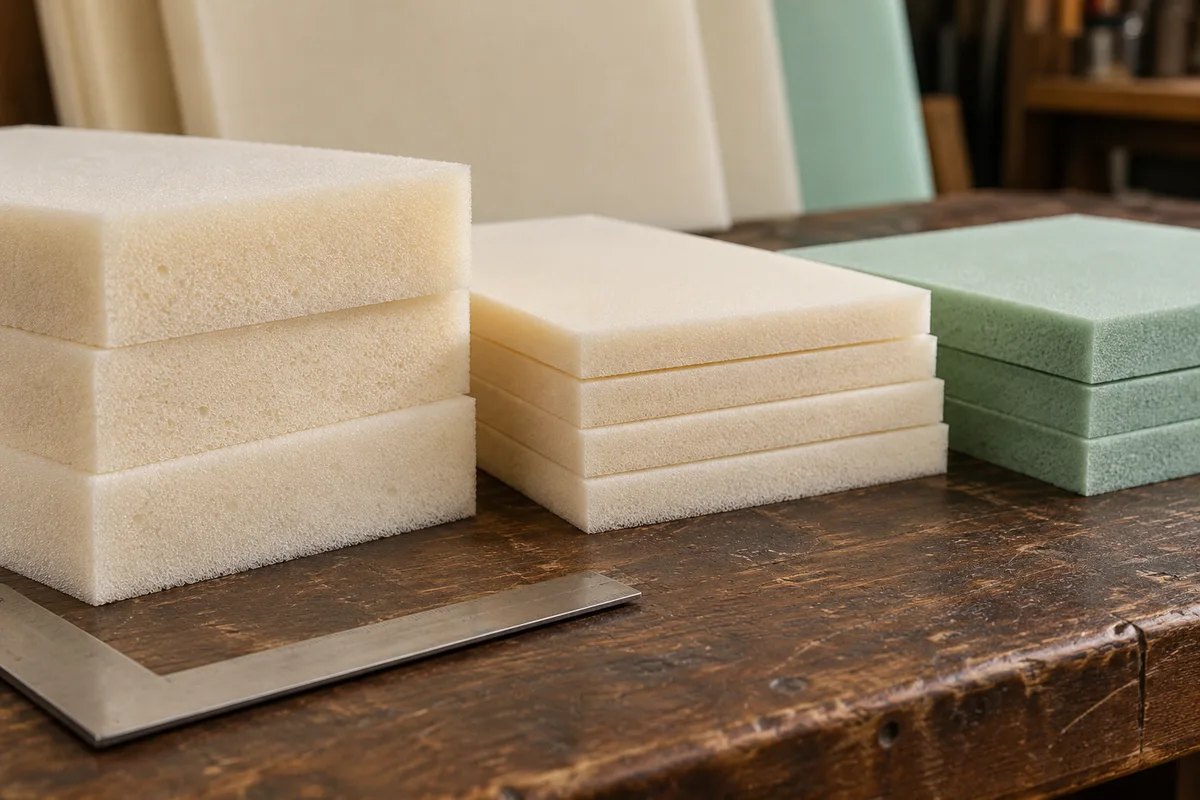
Two rectangles with the same face dimensions can require very different foam stock. The planner only places a piece when both the material name and the physical thickness match a sheet. That rule remains true after unit changes and JSON import. Store firmness or product references in the material name when they define a separate grade; the tool does not infer interchangeability from color or appearance.
Check the numbers
Four cushions from two 24 by 72 inch sheets
The English example requests four 20 by 20 inch pieces, each 3 inches thick. Two matching 24 by 72 inch sheets are available, and the cut separation is one-eighth inch.
Only one 20-inch piece fits across the 24-inch sheet width. Three fit along its length because 20 + 0.125 + 20 + 0.125 + 20 = 60.25 inches. A fourth would extend to 80.375 inches and exceed the 72-inch sheet.
The first sheet receives three pieces at Y coordinates 0, 20.125 and 40.25 inches, all at X = 0. Its occupied depth is 60.25 inches and the full-width remainder is 11.75 inches. Piece dimensions remain exactly 20 by 20; gaps do not enlarge them.
The fourth piece is placed on the second matching sheet. The plan therefore uses two sheets. Sheet one utilization is 1200 ÷ 1728, approximately 69.4%; sheet two utilization is 400 ÷ 1728, approximately 23.1%. The unused regions have their own coordinates.
If the second sheet is changed to a different thickness, the fourth piece remains unplaced despite available area. Restore the matching thickness or add suitable stock. This example also illustrates why total requested area divided by sheet area cannot by itself prove that one sheet is enough.
Use a consistent, specific material reference for each product that may be substituted within the job. Similar-looking foam may differ in density, firmness or cell structure. Those properties are outside the calculation, but the naming system lets you keep them in separate groups. An accidental spelling change can also prevent an otherwise matching placement.
A gap is a geometric separation
The collision check requires the entered separation along a dividing axis between adjacent rectangles. It does not simulate a blade, tool path, compression or kerf recovery. If a particular cutting method needs more access, enter a suitable gap and check the sequence at the bench. This plan is not a CNC program.
Locks protect positions, not bad geometry
Locked pieces remain in place during a new search, but they still must fit the sheet and match its material and thickness. Editing a sheet around a locked piece can make the plan invalid. Correct the reference, move the piece or clear all positions and locks. A lock never exempts a piece from overlap or boundary checks.
Inspect every proposed remnant
The free-region export partitions unused sheet space into non-overlapping rectangles. It can include narrow cutting gaps and does not establish whether an area is undamaged or practical to separate. Keep only useful, inspected pieces in inventory and record their thickness and material. Do not total all exported regions as guaranteed future savings.
The method, explained
What the sheet search proves and what it does not
Rule version 1.0.0
Expand quantities and match groups
Every quantity row is expanded into individual cut identifiers. A candidate sheet must match the material name and thickness exactly. The search preserves validated locks and tests several piece orders with permitted orientations. Candidate positions come from the sheet origin and already occupied edges plus the cutting gap. Every accepted piece must remain inside its usable sheet.
Compare practical arrangements
Candidate layouts are ranked first by placed piece count, then placed area, then fewer occupied sheets. This is a bounded heuristic, not an exhaustive proof of the smallest possible purchase. An unplaced item can indicate no compatible sheet, a dimension that cannot fit, or a free position the search did not find. Manual adjustment and different locks may improve the result.
Keep exports tied to the checked plan
Coordinates record each physical piece’s sheet, material, thickness, position and orientation. A partial plan is explicitly identified, and cutting labels remain unavailable until all requested pieces are placed. JSON preserves editable inputs and validated positions; CSV and PDF are records. Editing while the background calculation runs cancels it so an old result cannot replace newer inputs.
How many foam sheets do I need for these cushions?
Enter the measured cuts and enough candidate sheets, then inspect the number actually used once all pieces are placed. The current plan gives a feasible sheet count under its constraints, not a proven minimum. If pieces remain unplaced, the displayed used count is incomplete and should not be treated as a complete order.
Why will a cushion not fit when the total area is sufficient?
Area does not describe shape, cutting gaps or group compatibility. A long rectangle may not fit either sheet direction, spare areas may be fragmented, or material and thickness may differ. Review the stated unplaced reason and inspect the map before adding more stock.
Can different foam thicknesses share one plan?
Yes, but each cut only goes onto a sheet of exactly the same thickness and material. The tool does not split a thicker sheet into layers or glue thinner layers together. Those operations need separate fabrication instructions and are outside the rectangular face layout.
Can I import the box cushion project?
Yes, after confirming that cover dimensions still need a foam fit check. The finished width, length, depth and quantity become a starting requirement. Fabric cut sizes and seam allowances are not imported as foam rectangles. Check every dimension and the available sheet specifications before running the layout.
Does the export include a machine cutting path?
No. It provides checked rectangle positions and a schematic sheet view for planning. It does not choose a blade, generate CNC code or establish a guillotine cutting sequence. A maker must determine a practical process and appropriate clearances for the actual material and equipment.
Can I keep a piece fixed while improving the rest?
Select its position, enable the lock and apply it before rerunning. Unlocked pieces may move; valid locked pieces stay. You can use exact coordinates on a phone instead of dragging. A rejected move leaves the last valid placement intact and displays the reason.
Take the plan to your worktable.
Review the measurements, keep a backup and print a proof.